AI Assistant
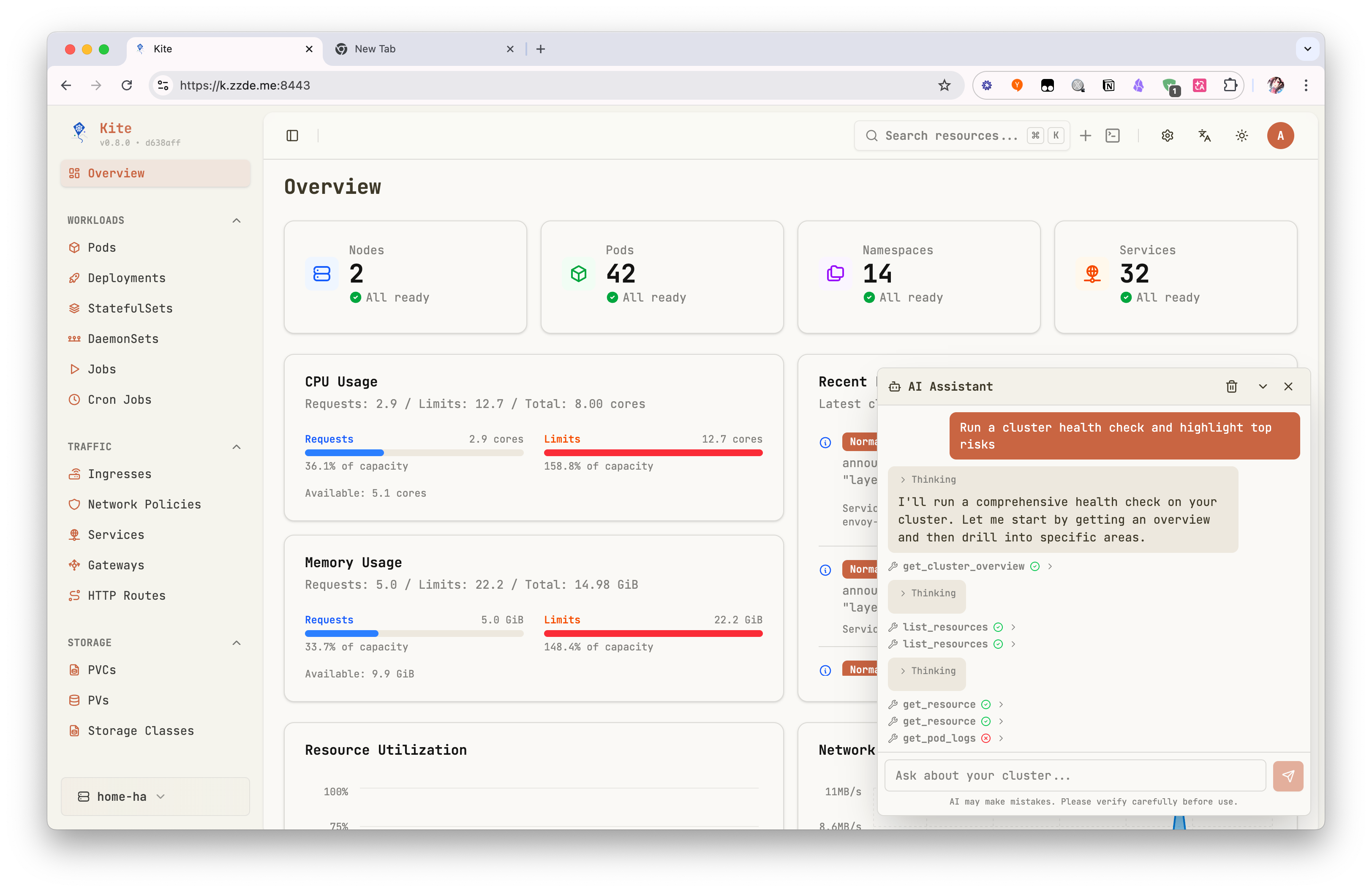
Kite includes a built-in AI assistant for Kubernetes operations. It can explain cluster state, inspect resources, read logs, query Prometheus metrics, and help with common changes without leaving the current workspace.
Enable AI
- Open
Settings. - Go to
General. - Turn on
AI Agent. - Choose a provider:
OpenAI CompatibleAnthropic Compatible
- Fill in
ModelandAPI Key. - Optionally set
Base URLandMax Tokens. - Save the settings.
If you use a self-hosted or proxy-compatible endpoint, set the Base URL to your API endpoint.
Open The Assistant
After AI is enabled, a floating AI button appears in the lower-right corner of the workspace. Click it to open the chat panel.
From the chat panel, you can:
- start a new chat
- review chat history
- open the conversation in a separate tab for more space
What The Assistant Can Do
The assistant is designed for day-to-day Kubernetes work inside Kite. Common use cases include:
- explain the current page, resource, or namespace you are viewing
- get a resource in YAML form
- list resources in the current namespace or across the cluster
- read pod logs for troubleshooting
- summarize overall cluster status
- query Prometheus metrics when Prometheus is configured
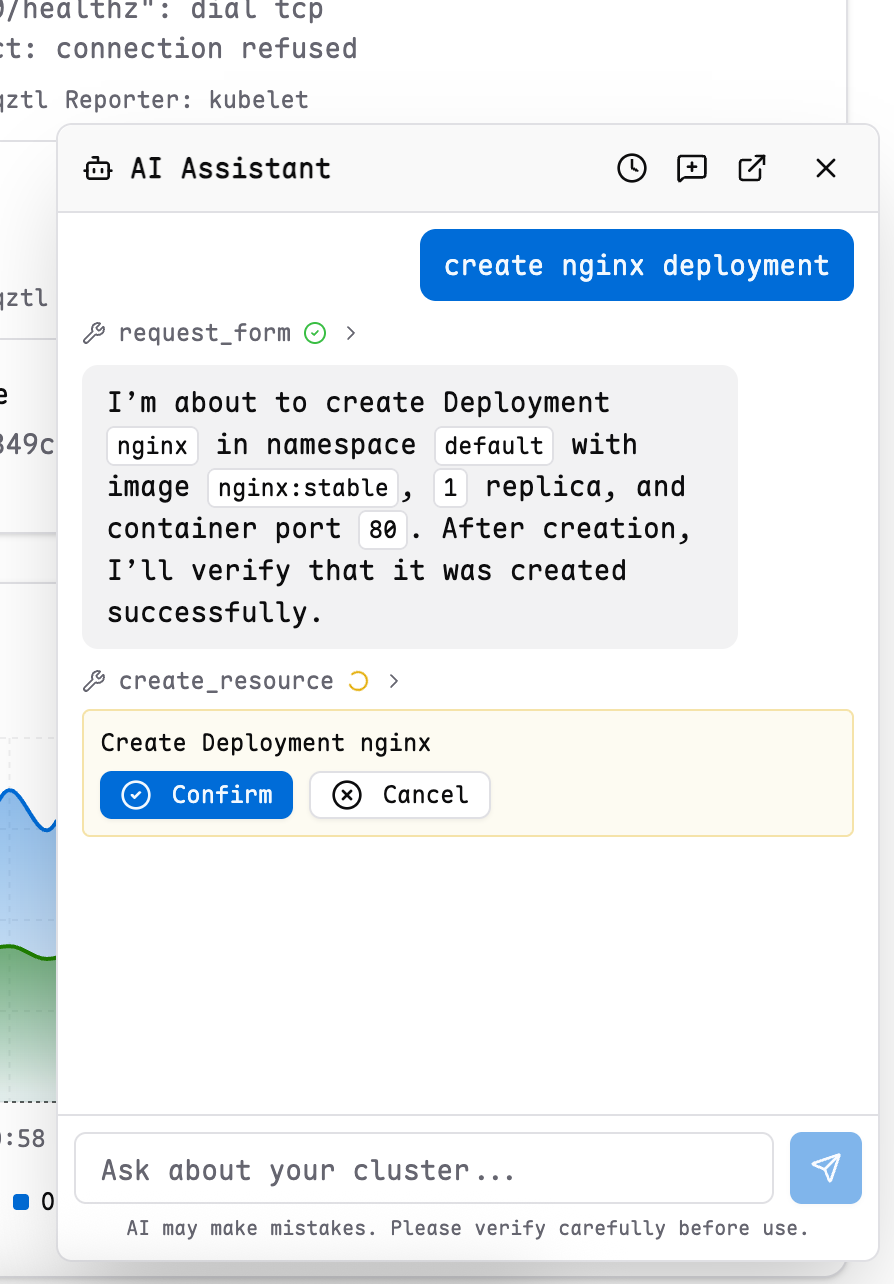
- create, update, patch, or delete Kubernetes resources after confirmation
Kite passes the current page context to the assistant, so it can use the current cluster, namespace, and resource page as the default scope when appropriate.
Confirmation And Structured Input
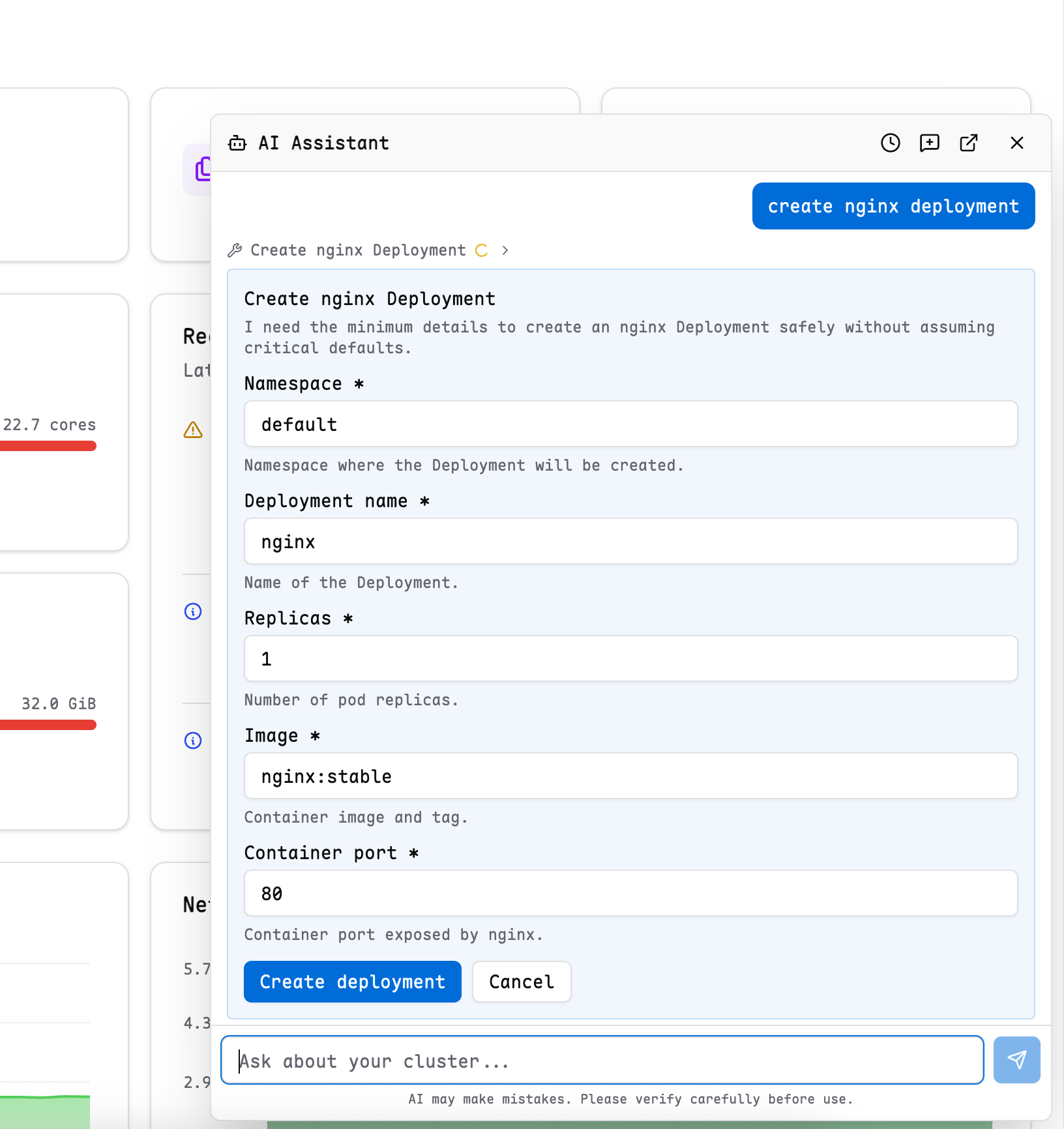
For write operations, Kite does not immediately execute the change. The assistant first prepares the action, then asks for confirmation in the chat UI.
When required details are missing, the assistant can also ask for:
- a short choice list
- a small structured form
This keeps the workflow inside the chat panel instead of requiring free-form back-and-forth for simple inputs.
Permissions And Safety
The AI assistant works within Kite's existing access model.
- It only operates on the currently selected cluster.
- It respects the current user's RBAC permissions.
describe_resourceis authorized by the user'sgetpermission on the target resource. Its output may also include Events and related resource summaries fetched by the Kubernetes describer; Kite does not perform separate RBAC checks for those included details. This is the intended authorization boundary for describe operations.- If the user cannot read logs, exec into pods, or modify a resource, the assistant cannot bypass that restriction.
- Prometheus queries are only available when Prometheus is configured for the current cluster.
For related setup details, see:
TIP
AI can make mistakes. Review generated actions carefully before confirming them.